Lip sync, dub, and image to video in one place
The sync. dashboard is rebuilt around what you want to create. Lip sync a clip, translate and dub it into a new language, turn an image into a talking video, or take full control in the timeline editor.

You open sync. with something you already have in mind.
Lip sync this clip. Dub it into Spanish. Turn this image into someone talking.
You usually know the outcome before you start.
Our dashboard didn’t used to work that way. Everything lived in one interface, and you picked your “mode” first: lite, assistant, or advanced. You had to know which mode fit the job before you could start.
So we flipped it.
The dashboard now asks one question: what do you want to create? You pick the outcome, and sync. drops you into the right workflow to make it. A sync. workflow is a guided path built around a single outcome, so the tools you need are already set up before you start.
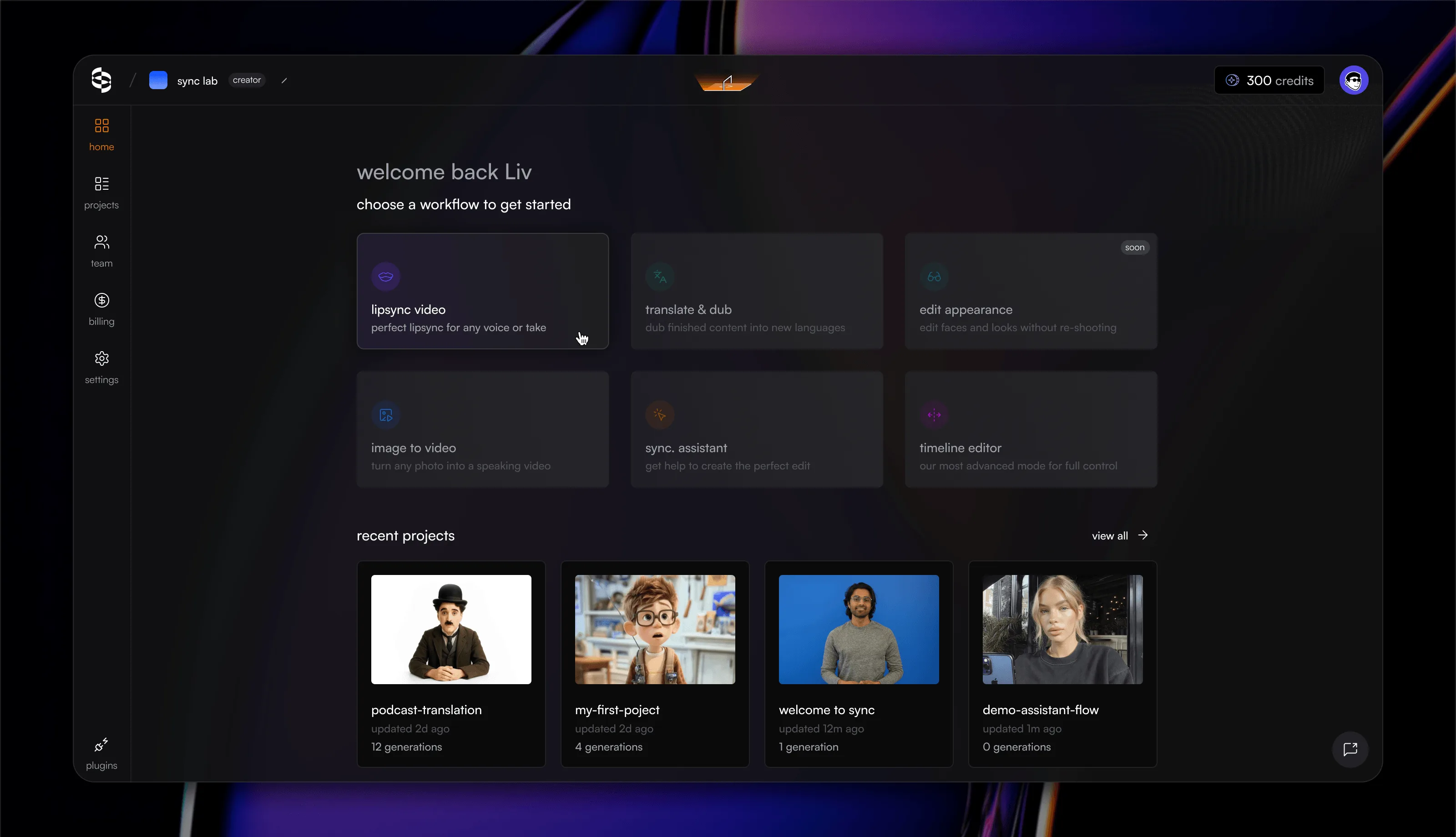
Every sync. project starts from a workflow
Each workflow is a real outcome you set out to make, and the dashboard is organized around those now, not around editing modes. You start from the thing you want, not from a tool you have to configure first.
Here’s what’s live today, and when you’d use each one.
Lipsync video. When you want the video to match new audio. This is AI lip sync for footage you already have: fix a flubbed line, match a fresh voiceover, or clean up a take without reshooting. Point it at the clip, give it the audio, and sync-3 re-syncs the speaker’s mouth to the new words, frame for frame.
Translate and dub. When you want finished content in another language. This is the whole video dubbing loop in one pass: pick a target language and sync. translates the script, clones the speaker’s own voice, and re-syncs the lips so the dubbed video matches the mouth instead of floating over it. One step instead of a separate translator, voice actor, and editor.
Image to video. When you don’t have footage yet. Turn a single image into a talking video: upload one photo of a person, add audio or a script, and get a speaking clip back. The still photo is the take now, and sync-3 builds the performance, lips, and expression off that one frame.
Timeline editor. When you want full control. It’s a full video editor built for lip sync work: split and trim clips, sync a single segment instead of the whole video, choose sync modes, and layer multiple audio and video tracks on one timeline. It’s our most advanced way to work in sync.
sync. assistant (beta). When you’d rather not learn the entire interface. It walks you one step at a time to a perfect lip sync, so you get the result without touching every setting yourself.
The list isn’t meant to be final. It’s the set of outcomes we support well today, and it’s where we start.
One sync. project, many edits
A sync. project now holds every edit your video needs, not just one kind of work.
Say you start with one raw clip. Lip sync it to a cleaner voiceover, then translate and dub it into Spanish and French for other markets, then open the timeline to reframe a single shot, all in the same project. You don’t export and re-import between steps. Each edit builds on the last.
That’s the reason we unified projects. Most real projects aren’t one operation. They’re a few, in sequence, and switching tools between them is where the time goes. Now you mix and match the edits your work actually needs, without the back-and-forth.
Tell us what’s missing
The point of all this is simple. Start from what you want to create, pick the path that gets you there, and take it all the way.
We want you to do more with sync, and switch tools less. So if there’s something you want to do that isn’t there yet, let us know at [email protected]. We’d love your feedback!