

Speaker Selection — Studio
Speaker selection lets you pick which person gets lipsynced in a video or image with multiple people. You can manually click a face, or for videos, use Active Speaker Detection to let Sync Labs identify the speaker automatically. If a detection lands on the wrong person, drag or resize its box onto the correct face. If no face is detected, you can place a box yourself. For programmatic usage via the API, see the API guide.
Speaker selection is available with our lipsync-2, lipsync-2-pro, and sync-3 models in both Lite and Advanced modes. Note that react-1 does not currently support this feature. For sync-3 image inputs, only manual face selection is supported — Active Speaker Detection is video-only.
Selecting a Speaker in Video
Upload your video
Upload a video that contains multiple people. Sync Labs detects the number of speakers in the background.
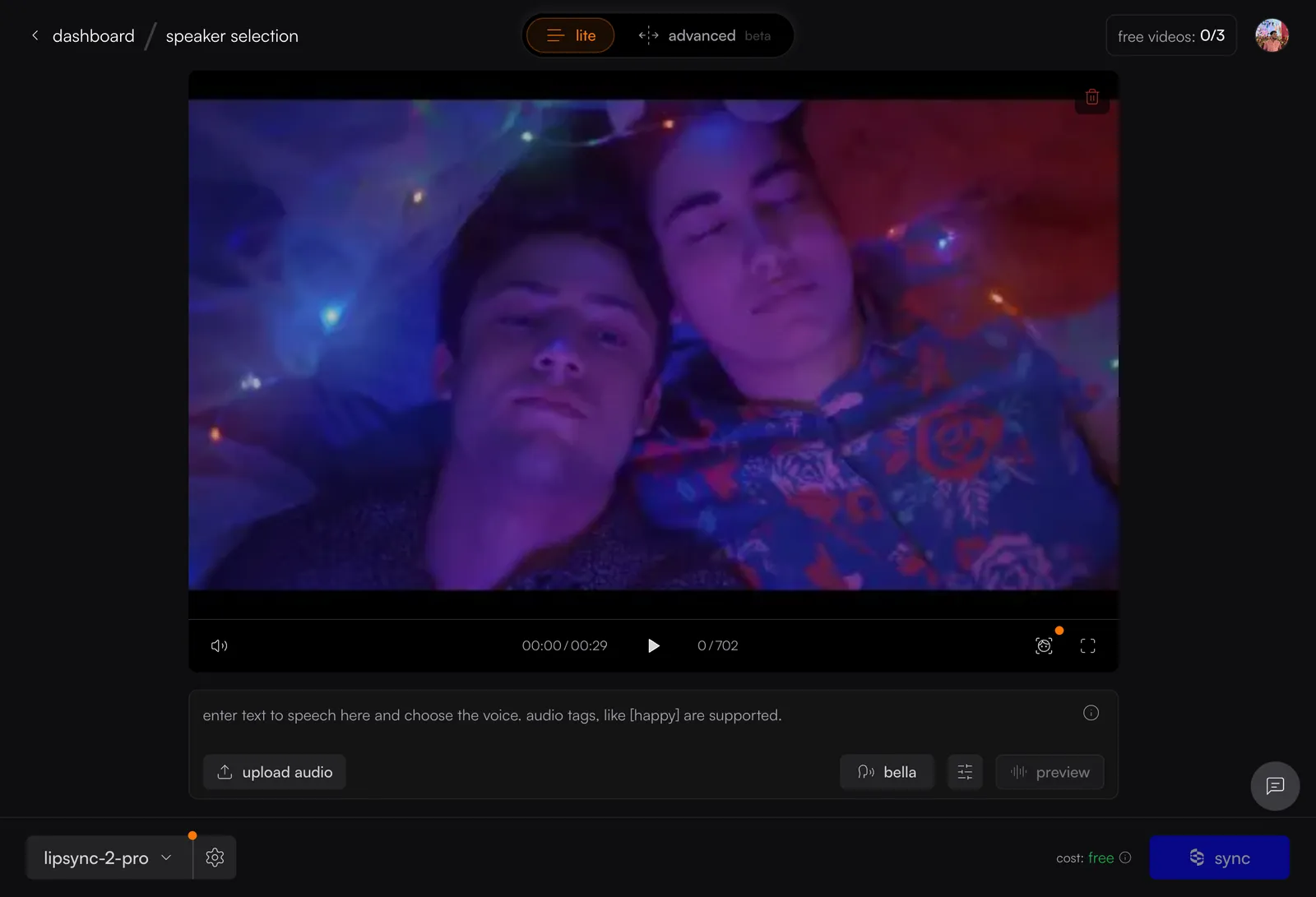
Enable face detection
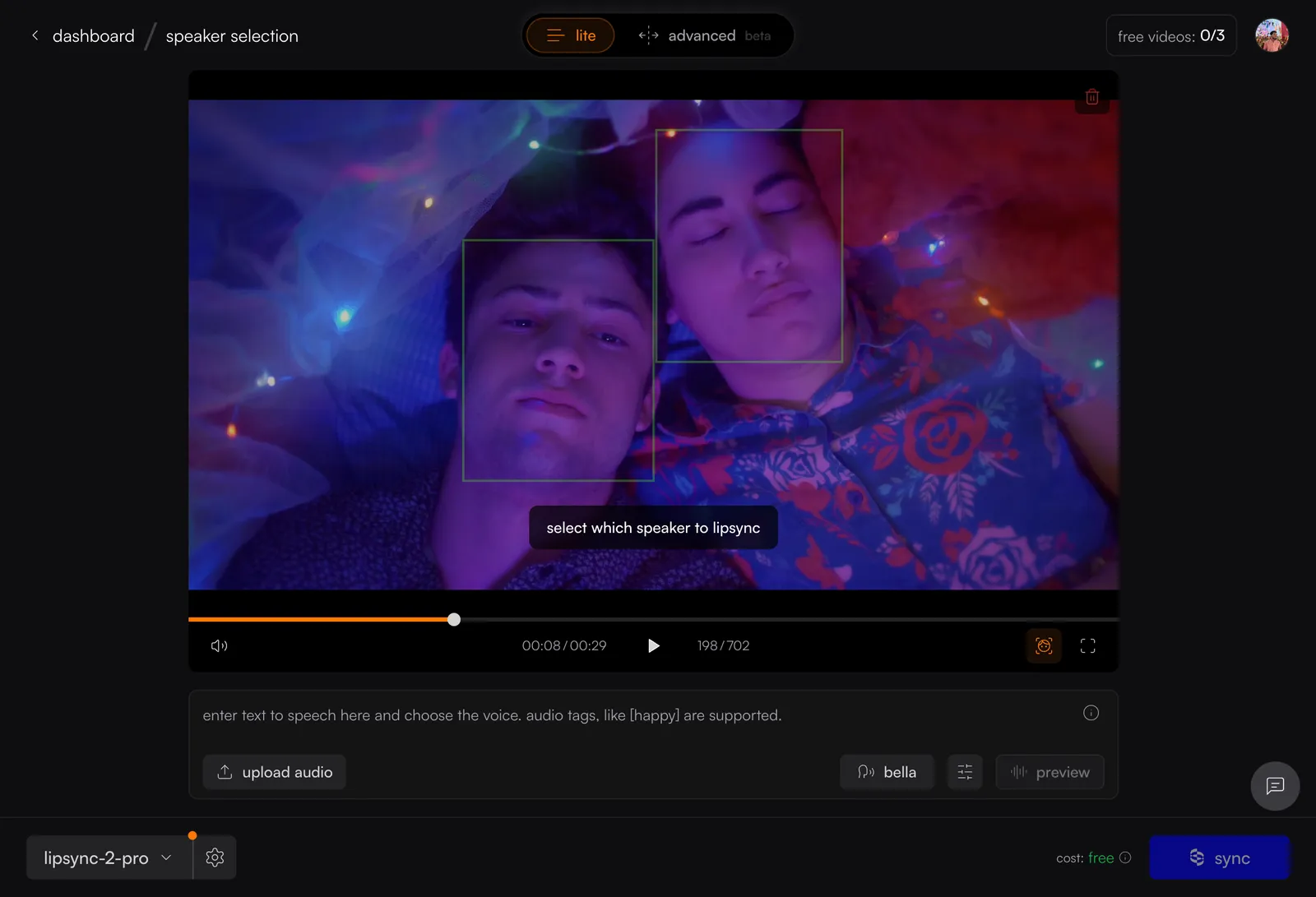
Click the icon in the video player controls. Green bounding boxes appear around detected faces with a hint: “select which speaker to lipsync.” If no boxes appear, see When No Face Is Detected below.
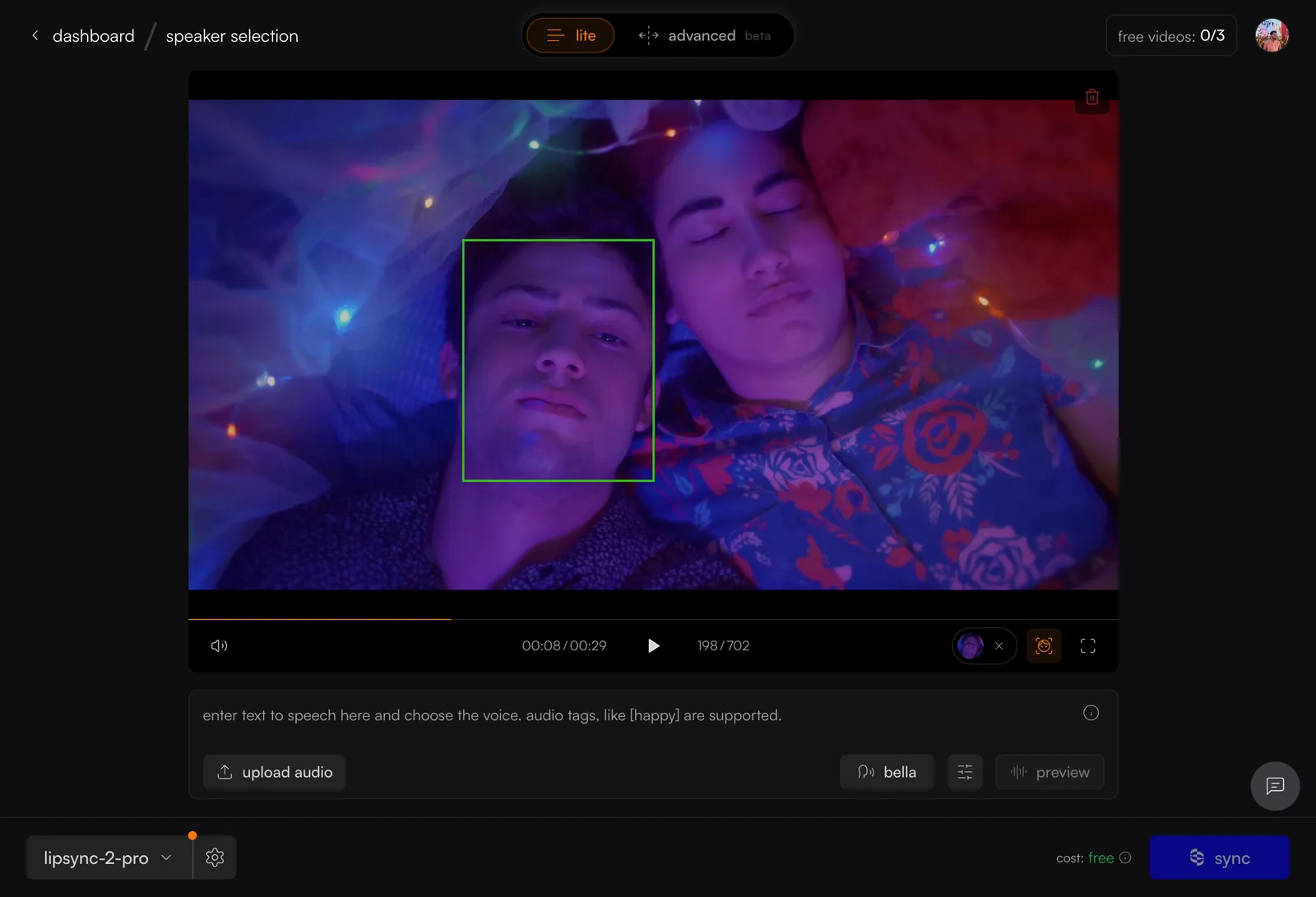
Changing or Clearing Your Selection
- Click the X on the face thumbnail to clear your selection.
- Scrubbing through the video re-runs detection.
- Click another face to switch speakers.
- If the selected or auto-detected box lands on the wrong person, drag the box onto the correct face, or drag a corner to resize it — the face thumbnail updates to match.
When No Face Is Detected
When no face is detected in your video, the hint offers a place a box action. Choosing it places a box on the current frame. Drag or resize it onto the intended face, the same way you’d correct a wrong detection.
Active Speaker Detection
As an alternative to manual selection, toggle Active Speaker Detection in the Studio settings panel. Sync Labs identifies the speaker via lip movement analysis — no manual click needed.
Manual selection and Active Speaker Detection are mutually exclusive — you can only use one at a time. Active Speaker Detection may not work reliably on silent or low-motion clips.
Selecting a Speaker in Images (sync-3)
For images with multiple faces, you can select which person to lipsync using the same face detection overlay.
Upload your image
Upload an image with the sync-3 model selected. Face detection runs automatically when the image loads.
Active Speaker Detection is not available for image inputs — only manual face selection. If your image contains a single face, the system skips the selection step automatically.
Related Resources
- Lipsync Model — learn about supported models including lipsync-2 and lipsync-2-pro
- Quickstart — get started with your first Sync Labs generation