

Installation Guide
This guide walks you through installing the Sync Labs plugin for Adobe Premiere, launching it for the first time, and signing in to your Sync Labs account.
Prerequisites
- Adobe Creative Cloud installed and up to date.
- Adobe Premiere 2025 (v25.6) or later — older versions are not supported.
- A Sync Labs account — sign up here if you don’t have one.
Where to Get the Plugin
Adobe Marketplace (Recommended)
The Sync Labs plugin is available on the Adobe Marketplace. This is the recommended way to install and keep the plugin up to date.
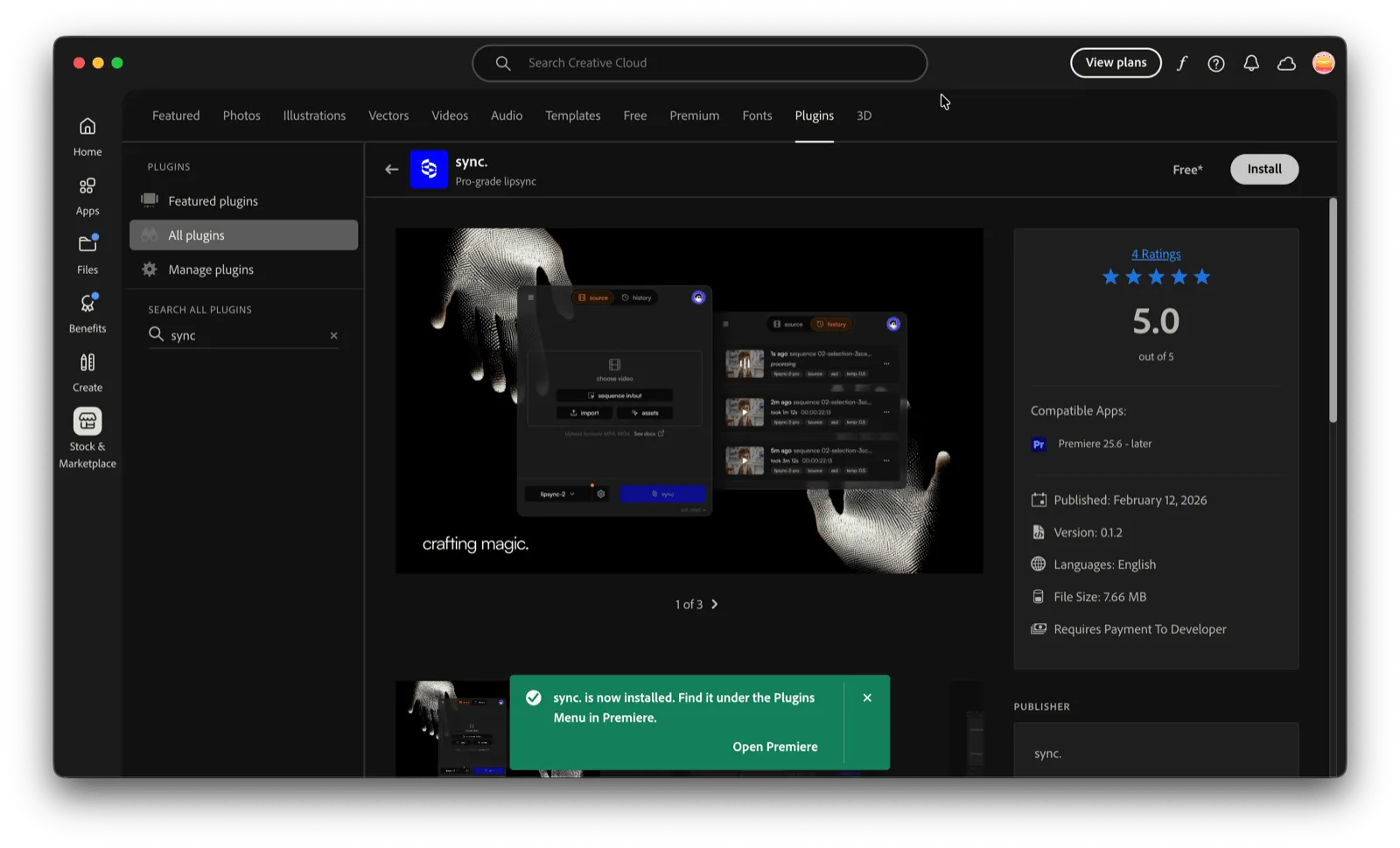
- Visit the Sync Labs plugin on the Adobe Marketplace or search for Sync Labs in Creative Cloud under Stock & Marketplace > Plugins.
- Click Install.
- Creative Cloud will handle the rest — once it’s done, the plugin is ready to use in Adobe Premiere.
Opening the Plugin in Adobe Premiere
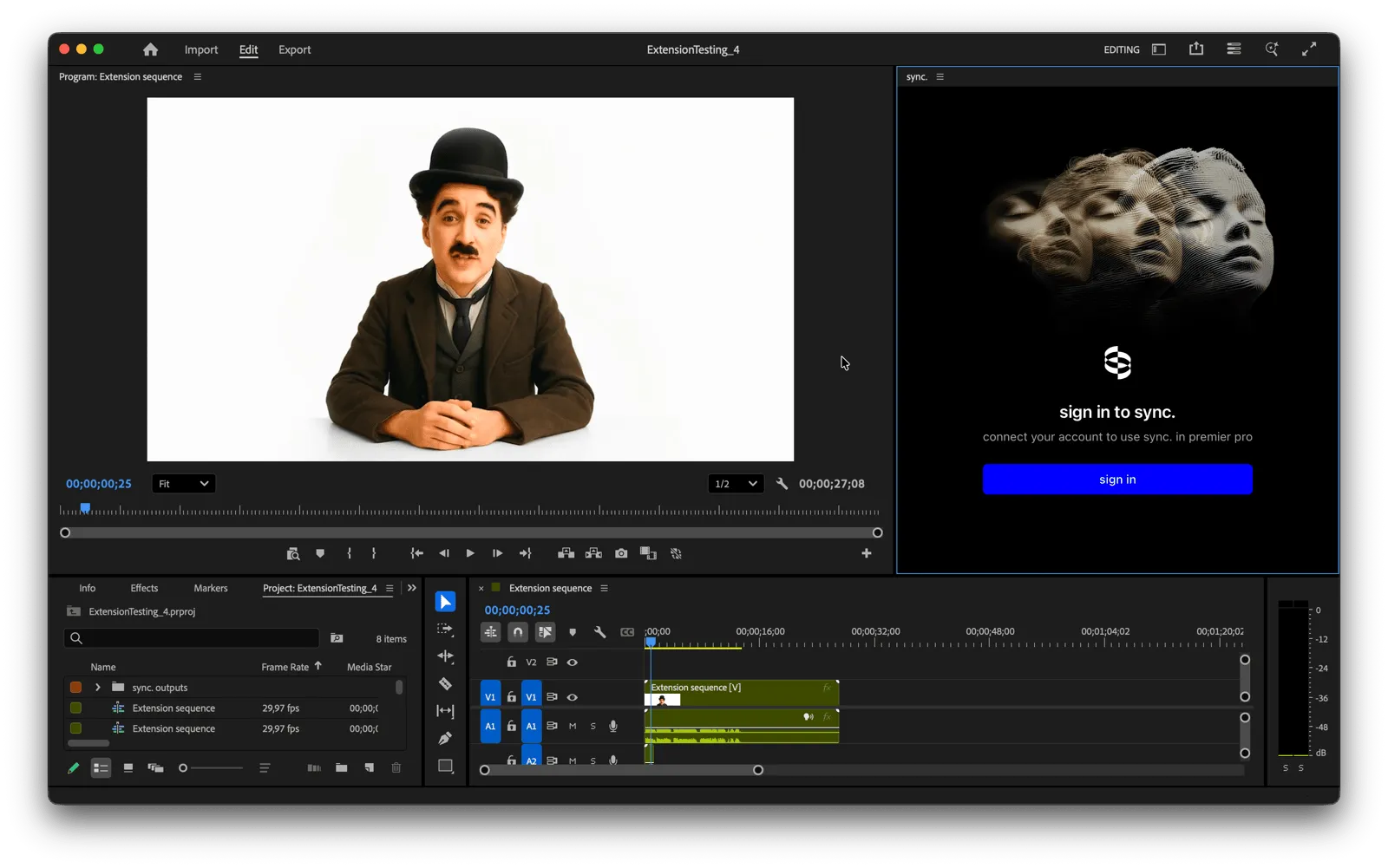
Open the Sync Labs plugin
In the menu bar, go to Window > UXP Plugins > Sync Labs.
If you don’t see Sync Labs under UXP Plugins, see the Troubleshooting section below.
Troubleshooting
The plugin doesn’t appear in the UXP Plugins menu
In some cases, Adobe Premiere needs plugin loading to be enabled in its settings. This can happen even with Adobe Marketplace installs. If you installed the plugin but don’t see it under Window > UXP Plugins, follow these steps:
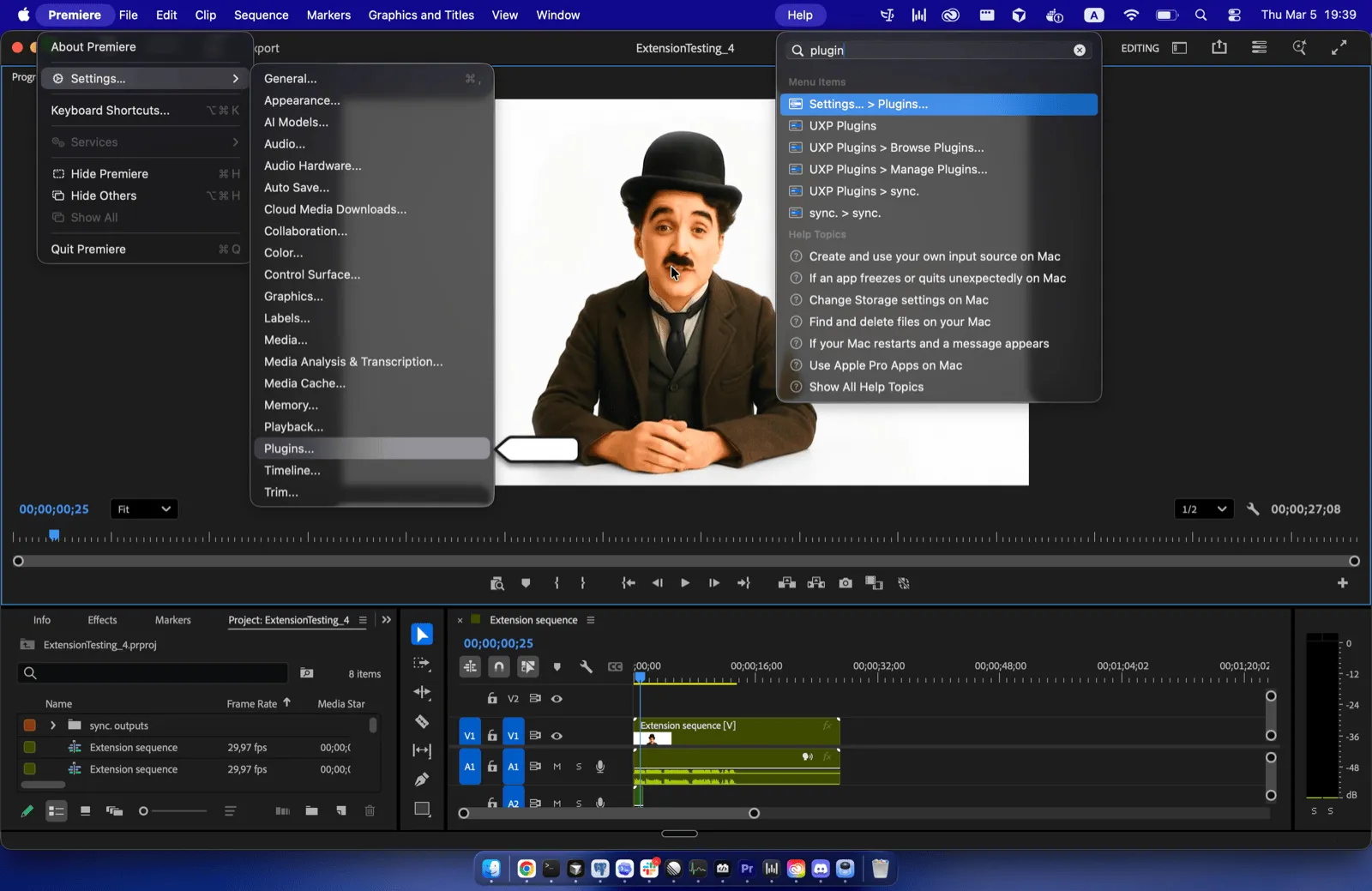
Open Plugin Settings
In Adobe Premiere, go to Settings… > Plugins… — you can also find this by opening the Help menu and searching for “Plugins”.
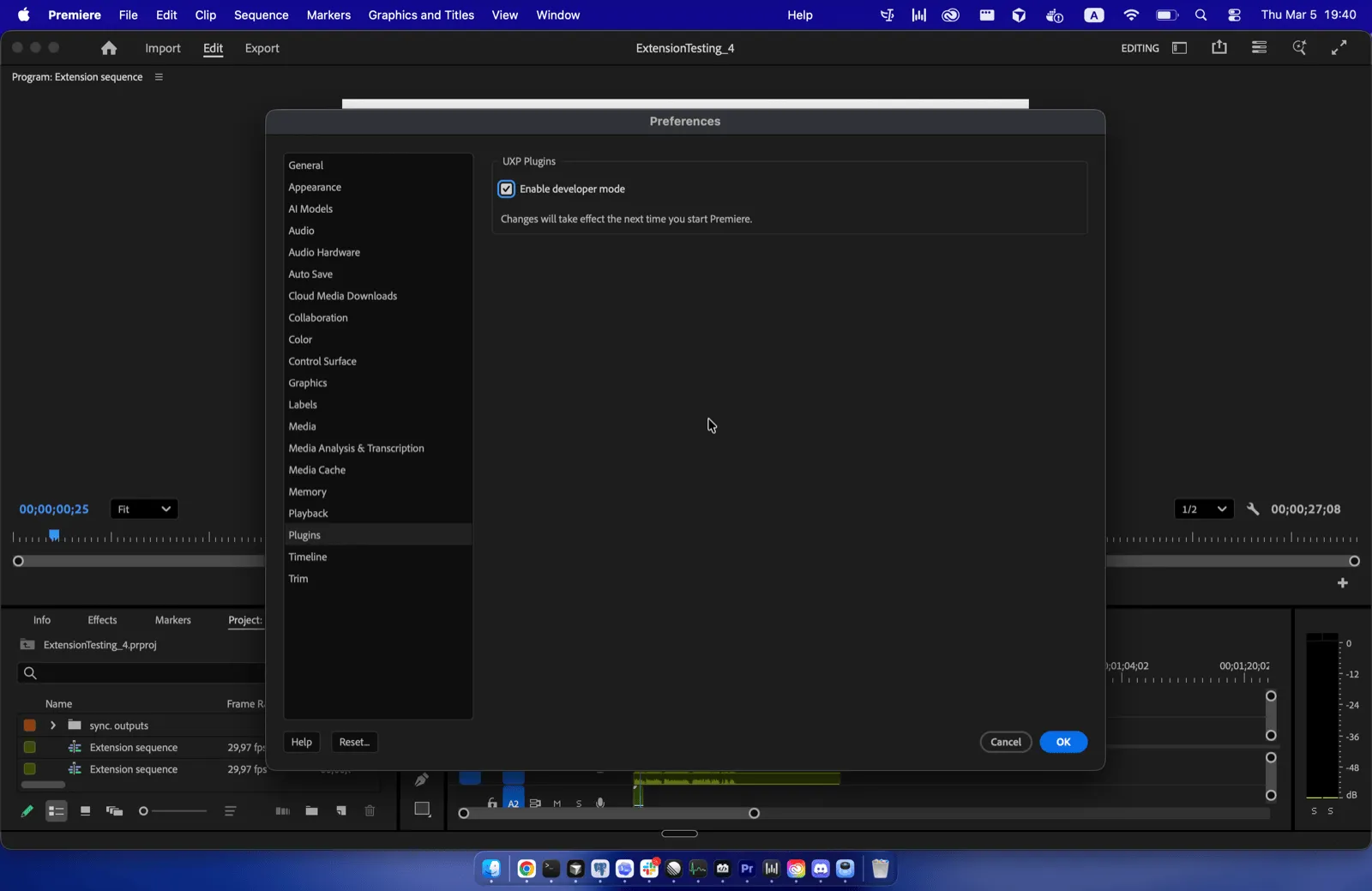
This setting does not affect the stability of Adobe Premiere or other plugins. It simply ensures extensions are loaded on startup.
The plugin panel is blank or unresponsive
- Make sure you have an active internet connection — the plugin needs to communicate with Sync Labs’ servers.
- Try closing the panel and reopening it from Window > UXP Plugins > Sync Labs.
- If the issue persists, restart Adobe Premiere.
Sign-in issues
- Verify that your Sync Labs account is active by signing in at sync.so/login.
- If you’re behind a corporate firewall or VPN, make sure traffic to
sync.soand*.sync.sois not blocked.
Installing on Windows ARM (Parallels)
If you’re running Windows on ARM (for example, using Parallels on an Apple Silicon Mac), the Adobe Marketplace installation method won’t work. Adobe’s Creative Cloud Stock & Marketplace tab isn’t available on Windows ARM, so you won’t see the Sync Labs plugin listed.
This limitation applies to the Marketplace installation channel. Use the current official download page for supported installation options, or contact support@sync.so with your operating system and Premiere version.
Uninstall
To remove the Sync Labs plugin, open Adobe Creative Cloud, navigate to Stock & Marketplace > Plugins > Installed Plugins, find Sync Labs, and click Uninstall.
Next Steps
Once you’re signed in, head back to the Adobe Premiere Plugin overview to learn how to use timeline selection, the media browser, and direct upload.
- Lipsync Model — learn about the lip sync models available in the plugin
- Billing — view your plan details and usage information